How to edit a .md file without learning Markdown
Fix a sentence, make text bold, add a heading, tick a checklist or add a table row in a .md file on a Mac, without typing a single Markdown symbol.
You do not need to learn Markdown to change a .md file. Open it in an app that shows the formatting instead of the symbols, then edit it the way you would edit a document in Pages or Word: click, type, select, press ⌘B. The app writes the symbols into the file for you.
The usual situation: an AI chat tool has given you a plan, a report or some notes as a .md file, and a few things need changing. Everything below is on a Mac, using Hem, a free, open source Markdown app. Alternatives are at the end.
A note on keys: ⌘ is the Command key, ⌥ is Option, ⇧ is Shift.
First, open it as a page, not as code
If double-clicking the file shows lines starting with # and words wrapped in **, the Mac has opened it in TextEdit or Xcode, which show the raw text. That text is Markdown, a way of writing formatting as plain characters; why AI answers are full of asterisks explains more.
Hem shows the same file as a formatted page. On first launch it offers to become the app that opens Markdown files, so afterwards a double-click is enough. You can also set this later in Hem’s Settings, or in Finder with ⌘I, Open with and Change All…. See opening .md files on a Mac for other ways.
Fix a sentence
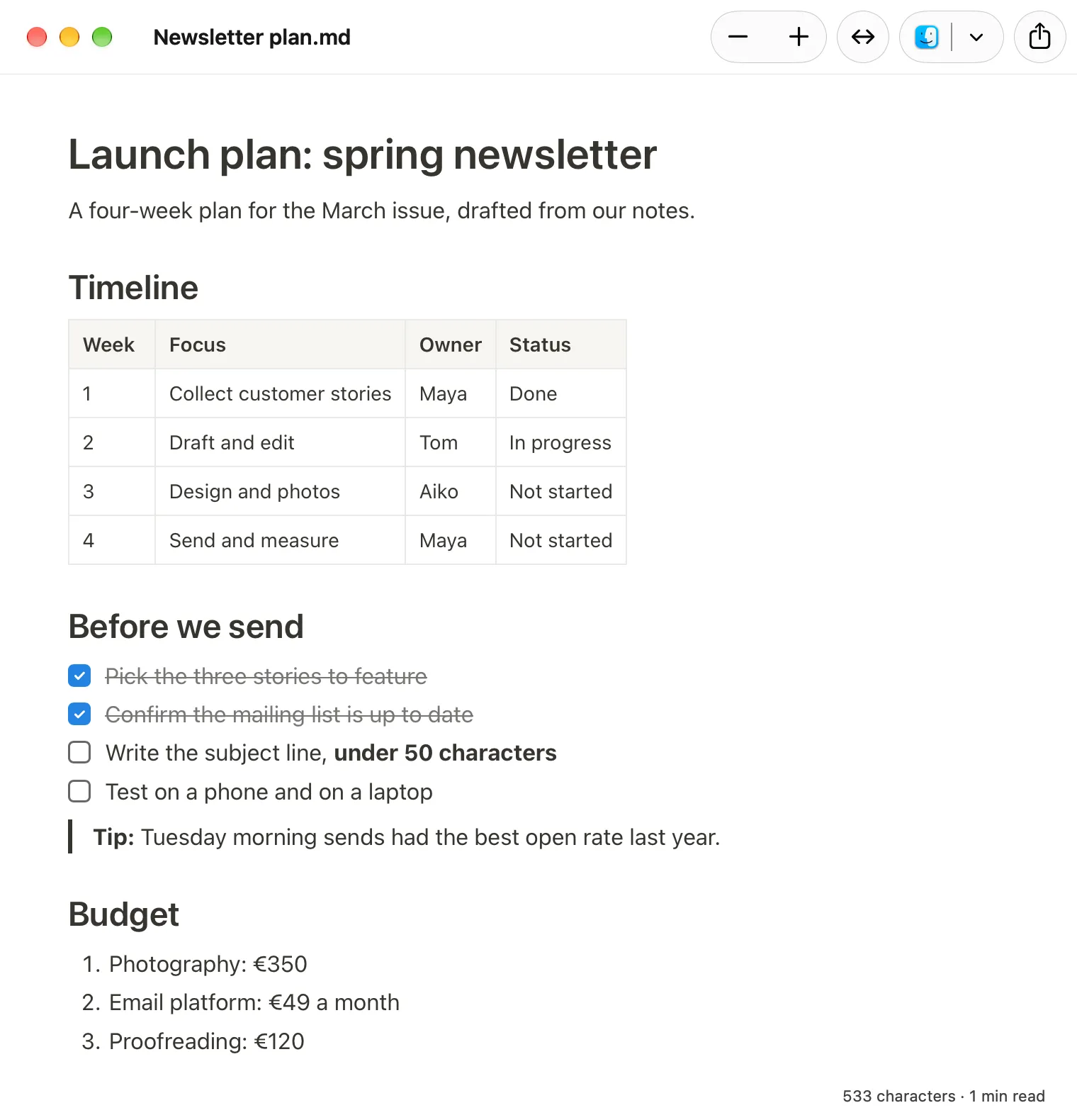
Click into the text and type. There is no separate editing mode and no preview pane beside the source; the page you are reading is the page you are editing.
You do not need to save. Hem saves as you go, into the same .md file, so there is no Save step and no copy to keep track of. ⌘Z undoes the last change if you went too far.
If you only want to read and are worried about changing something by accident, turn on View → Read Only (⇧⌘L).
Make something bold or italic
Select the words. A small formatting bar appears above the selection with buttons for bold, italic, strikethrough, code and link. Click the one you want.
Or use the keyboard: ⌘B for bold, ⌘I for italic, as in most Mac apps. Both are also in the Format menu, the place to look whenever you forget a shortcut. Pressing the same button or shortcut again removes the formatting.
Add or change a heading
Put the cursor anywhere in the line that should become a heading, then choose a level:
| Level | Shortcut | Use it for |
|---|---|---|
| Heading 1 | ⌥⌘1 | The title, usually once per document |
| Heading 2 | ⌥⌘2 | Main sections |
| Heading 3 | ⌥⌘3 | Sub-sections |
The same three are on the formatting bar and in the Format menu. To turn a heading back into ordinary text, choose Format → Body.
To add a new section, press Return at the end of a paragraph, type the section name, and make it a heading.
Tick items off a checklist
In Hem the boxes in a checklist are real checkboxes: click one to tick it, click again to untick it. The tick is saved into the file like any other edit, so the next person or AI to open it sees it.
To turn an ordinary list into a checklist, select it and press ⇧⌘9, or choose Task List from the formatting bar. ⇧⌘8 makes a bulleted list and ⇧⌘7 a numbered one. In any list, Return starts a new item.
Add a row to a table
Click into any cell and type to change its contents. Tab moves to the next cell, ⇧Tab to the previous one.
To add a row, click into a cell in the row next to where you want the new one. A small handle marked with three dots appears on the left edge of that row; click it and choose Insert Row Above or Insert Row Below. The same menu has Delete Row. A matching handle above the current column inserts, deletes or aligns columns.
To start a new table from scratch, use Format → Insert Table.
Delete a section
Click just before the section’s heading, then ⇧-click at the end of its last line so the whole section is highlighted, and press Delete. ⌘Z brings it back if you took too much.
Paste in text from a chat
If the AI writes you a better paragraph in the chat, copy it and paste it into the document. Hem turns any Markdown symbols in pasted text into formatting, so it arrives as headings and bold text, not asterisks.
What happens to the file
Hem rewrites only the parts you changed, in the style they were already written in; the rest stays exactly as the AI wrote it. The result is still an ordinary .md file that any AI or Markdown app can read, and it never leaves your Mac.
What Hem will not do is add font colours, highlighting or a choice of typeface, because a .md file has no way to store them. If the document needs that styling, finish the wording in Hem, then turn it into a Word document with File → Export as Word Document….
The few symbols worth knowing anyway
If you ever edit the file in TextEdit or another plain text editor, this covers most of what AI tools write:
| You see | It means |
|---|---|
# Title |
Heading 1. ## is Heading 2, ### Heading 3 |
**words** |
Bold |
*words* |
Italic |
- item |
A bullet point |
1. item |
A numbered item |
- [ ] task / - [x] task |
An unticked / ticked checkbox |
> text |
A quote |
[text](https://…) |
A link |
Lines with | between words |
A table row |
Two habits keep a file tidy when you edit it as plain text: leave an empty line between paragraphs, and keep a space after #, - and 1.. Without them, some apps will run lines together or show the symbol as text.
Give the edited file back to the AI
In a chat (ChatGPT, Claude, Gemini and similar): attach the edited .md file to a new message with the paperclip or + button, and say what it is: “This is the current version of the plan. I’ve changed the budget section and ticked off the finished tasks. Work from this version.” Without that sentence, the AI may carry on from the older copy earlier in the conversation.
If the file is short, you can paste it instead: select all in Hem, copy, and paste into the chat box. A plain-text box receives the Markdown, which is what the AI works with anyway.
If an AI agent works on files in a folder on your Mac, there is nothing to hand back: Hem has already saved your edits to the file the agent reads. And when the agent changes the file, the open Hem window shows the new version.
Other good ways to do this
Typora is an editor for Mac, Windows and Linux that also formats as you type. It is a paid app with a one-off licence and a 15-day free trial. Good for: people who want a mature, polished writing app and do not mind paying.
Obsidian is a free note-taking app that edits Markdown well, but it works on files inside its own folder, called a vault, so a file from Downloads has to be moved or copied in first. Good for: people who will keep many notes and want them linked together.
Google Docs can open and edit a .md file once you upload it to Google Drive, and it stays a .md file. Good for: editing together with other people, if you are happy for the file to live in the cloud.
For a wider comparison, see the best Markdown apps for Mac.
Hem is free and open source, with no account and no paid tier. It needs macOS 14 Sonoma or later, runs on Macs with Apple silicon, and is a 5.7 MB download. It is Mac only: there is no Windows, iPhone or web version.