How to turn a .md file into a Word document on a Mac
Every practical way to get a .md file from ChatGPT or Claude into Word, Pages or Google Docs on a Mac, and what each does to tables and checklists.
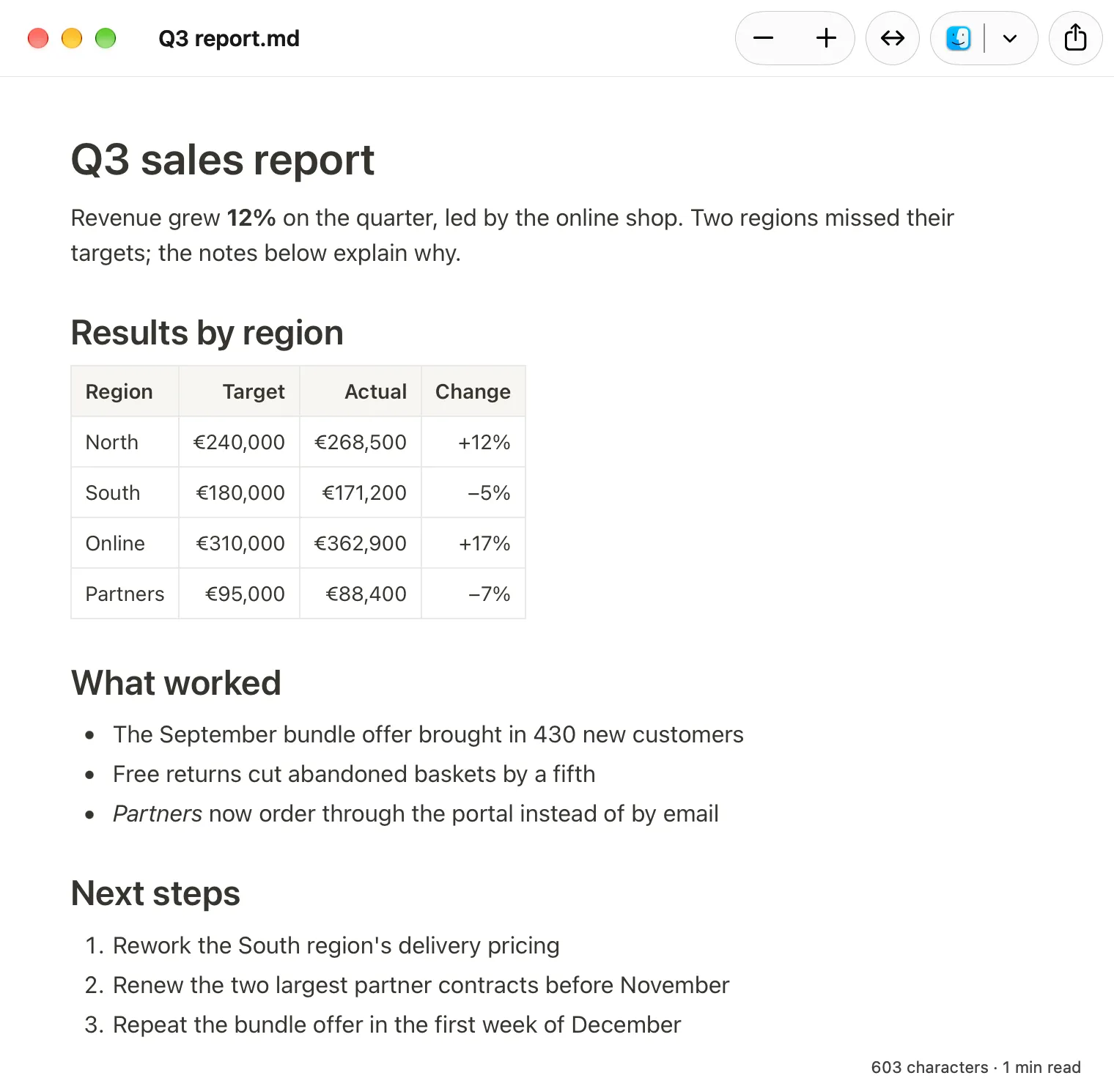
The shortest route is to open the .md file in an app that shows it formatted, then either export it as a Word document or copy the whole page and paste it into Word. Both take under a minute and keep the headings, bold text, lists and tables. The other routes below are for when you would rather use Google Docs, a script, or the AI itself.
A .md file is a Markdown file: plain text in which # marks a heading, ** marks bold and | draws a table. The chat window turns those symbols into formatting for you. Word does not. Desktop Word has no built-in way to open Markdown, so opening the file directly gives you the symbols, not the formatting. (If that is new to you, what is an .md file explains it in more detail.)
1. Export it from a Markdown app
Hem is a free Mac app that opens .md files as formatted pages. To get a Word file out of it:
- Double-click the
.mdfile. If it opens somewhere else, right-click it and choose Open With → Hem. - Choose File → Export as Word Document…
- Pick a name and folder. You get a
.docxfile that Word, Pages and Google Docs can all open.
Nothing is uploaded; the conversion happens on your Mac. Headings arrive as Word’s own heading styles, so they show up in Word’s navigation pane, and tables arrive as Word tables. Checklists become ☐ and ☒ at the start of each line, diagrams become pictures, and pictures stored next to the .md file are embedded. Pictures the file links from the web are left out, with their description in their place.
Good for: the common case of “someone wants this as a Word file”.
2. Copy from a formatted view and paste
If you want the text inside an existing Word document, or in Pages, copying is often quicker than exporting.
- Open the file in Hem.
- Press ⌘A to select everything, then ⌘C to copy.
- Switch to Word or Pages and press ⌘V.
Hem puts formatted text on the clipboard, so the paste arrives with headings, bold, lists and tables intact. Word’s default paste setting keeps the source formatting; if the result looks plain, use the Paste Options button that appears next to the pasted text and choose Keep Source Formatting.
Pages cannot open .md files itself, so pasting is the easiest way in. From Pages you can then make a Word file with File → Export To → Word…
One thing to check after pasting into Word: click a heading and look at the Styles gallery on the Home tab. If it says Heading 1 or Heading 2, Word’s navigation pane and automatic table of contents will work. If it says Normal, the heading only looks like one; apply the heading style by hand if you need those features.
3. Upload to Google Docs and download as .docx
Google Docs has been able to import Markdown since 2024. This route needs a Google account and puts the file in your Google Drive.
- In Google Docs, choose File → Open → Upload and select the
.mdfile. (Or upload it to Google Drive, right-click it and choose Open with → Google Docs.) - Check the result.
- Choose File → Download → Microsoft Word (.docx).
Google’s help pages describe support for headings, bold, italics, strikethrough and links. They say less about tables, checklists and code, so look at those before you download. Newer versions of Docs may open a .md file in a Markdown mode, with an .md tag next to the title, and keep it as a .md file in Drive rather than converting it.
Good for: documents that are going to be shared and edited in Google Docs anyway.
4. Online converters
Search for “md to docx” and you will find plenty of websites that take a Markdown file and hand back a Word file.
The trade-off is that you upload the document to a stranger’s server. For a recipe or a public how-to that hardly matters. For a contract draft, a medical summary, a performance review or anything under an NDA, it is a real decision: you rarely know who runs the site, how long it keeps files, or what else it does with them. If the document is private, use one of the routes that stays on your Mac.
5. Pandoc, for the technically minded
Pandoc is a free command-line converter, and the tool most programmers reach for. It is installed with a package from its website or, if you use Homebrew, with brew install pandoc. Then, in Terminal, from the folder that holds the file:
pandoc notes.md -o notes.docxHeadings come out as proper Word heading styles, tables as Word tables, and images stored next to the file are embedded (run the command from the file’s folder so it can find them). Checklists become bulleted lists with ☐ and ☒ symbols as bullets, which look right but cannot be ticked. If you want your own fonts, --reference-doc=template.docx applies the styles from a Word file you provide.
Right for converting many files the same way; more setup than one file from a chat needs.
6. Ask the AI for a .docx instead
ChatGPT, Claude and other chat tools can often produce a Word file if you ask for one directly, for example “give me this as a .docx file”. When it works, it saves a step.
It does not always work. Sometimes the link is broken or the formatting is off, and in ChatGPT download links for generated files are temporary, so a file you come back for tomorrow may be gone. Download it straight away and open it before you send it on.
What happens to tables, checklists and images
Whichever route you take, these three are worth a look before you send the file.
Tables. Small tables convert well almost everywhere. Very wide tables do not fit a portrait page in Word either; switching the page to landscape (Layout → Orientation) usually fixes it.
Checklists. Markdown’s - [ ] checklists have no exact equivalent in Word. Expect a list with box symbols, or plain bullets, rather than boxes you can click. If someone needs to tick them in Word, that is a manual job afterwards.
Images. When a Markdown file has pictures, it either links to a picture on the web or points to a picture file sitting next to it. A converter needs to reach both to include them, which is one more reason to scroll through the Word file before sending it.
Which route to use
| Route | Where the file goes | Setup | Best for |
|---|---|---|---|
| Export from Hem | Stays on your Mac | Install a free app | Making a .docx quickly |
| Copy and paste | Stays on your Mac | Same | Adding to an existing document, or to Pages |
| Google Docs | Your Google Drive | A Google account | Documents that will live in Google Docs |
| Online converter | A third-party website | None | Non-private files, on a computer that is not yours |
| Pandoc | Stays on your Mac | Terminal | Many files, or a house template |
| Ask the AI | Already in the chat | None | When the file has not been made yet |
When not to convert at all
A Word file is the right thing to hand to someone who lives in Word. It is the wrong thing to keep as your only copy if you are still working on the document with an AI.
Chat tools read and write Markdown natively. Give one a .md file and it reads the structure directly; give it a .docx and it has to unpick Word’s formatting first, and its reply usually comes back as Markdown anyway. You also lose the easy route back: turning a Word document into a clean .md is harder than going the other way.
So keep the .md file as the working copy and make a Word file when someone needs one. If all you wanted was to read or tidy the document, you may not need Word at all: Hem lets you edit the formatted page directly and saves back into the same .md file, and it can print or save it as a PDF as well. ChatGPT gave me an .md file covers that first step.